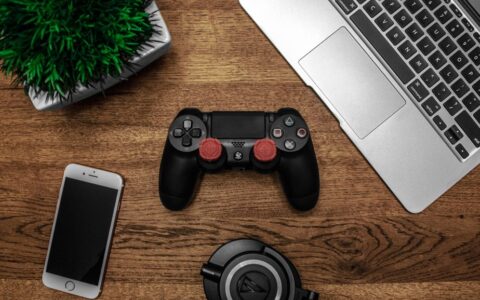

Connecting a controller to Call of Duty Mobile can sharpen your movement and aim, but only if you set it up right. Here’s how to map, tune, and win without spending a cent.
How Controller Support Actually Works And What It Won’t Do
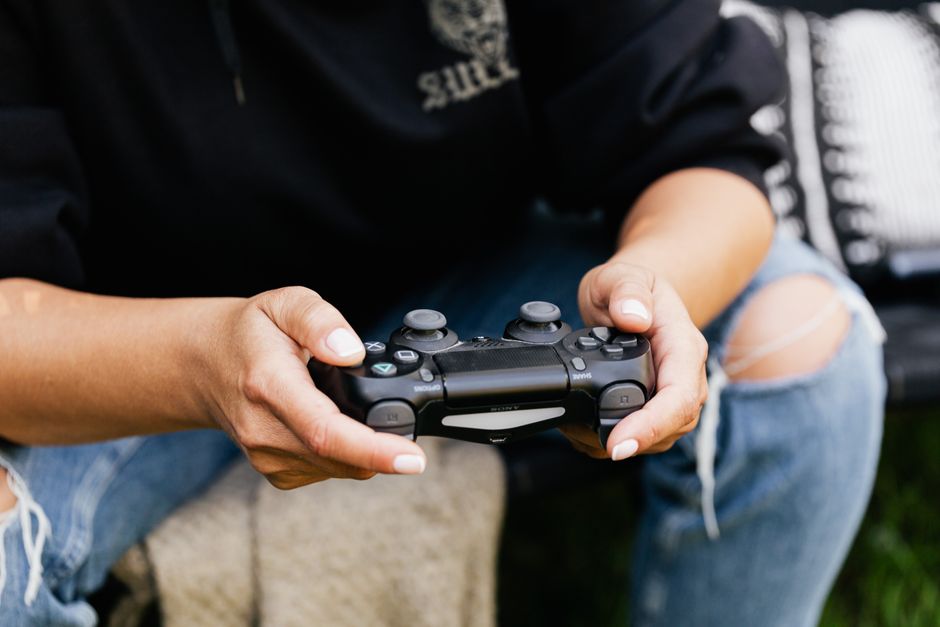
Before you map a single button, understand what a controller does and doesn’t give you here. Connect it over Bluetooth in your phone settings, then open the game’s controller menu, which auto-detects Xbox, DualSense, DualShock, and most MFi pads. The game also keeps controller users in their own matchmaking pool, so you’re facing other pad players, not touch aces.
The honest caveat: COD Mobile gives controllers no aim assist. On console, sticky aim tracks half the target for you. Here, every flick and micro-correction is on you, which is exactly why many top players stick with touch or gyro. A controller is a different input to master, not a free skill boost.
Stay on the native controller support built into the game. Third-party key-mapper apps that turn stick movement into fake screen taps inject simulated touch, which sits squarely against the terms of service and can get your account flagged or banned. No mapping hack or shortcut is worth torching years of progress.
So set expectations. A controller shines for movement, strafing, sliding, and jump-shots feel natural, and for players carrying console muscle memory. If your aim is already sharp on touch, the pad won’t carry you. Give it a solid two weeks before you decide whether it fits.
Picking the Right Controller for Your Phone
Any modern Bluetooth pad works, but fit and latency matter more than brand. The Xbox Wireless Controller and Sony’s DualSense are the safe picks, well-supported, low input lag, and comfortable for long sessions. Both pair in seconds and rarely drop connection mid-match, which is all you really need.
If you hate juggling a phone and a separate pad, a clip-on like the Razer Kishi or Backbone turns your phone into a handheld. They connect through the USB-C or Lightning port, so Bluetooth latency is a non-issue and your thumbs stay inches from the screen. The trade-off is a fixed screen position and a tight fit with bulky cases.
Android and iOS both support the mainstream controllers natively now, but check your OS version. Older Android builds can be flaky with DualSense, and iOS needs a fairly recent release for full support. Charge the pad before a ranked grind, because a dying controller introduces stick drift and dropped inputs that feel exactly like lag.
Skip no-name budget pads if you can. Cheap Bluetooth controllers often have noticeable input delay and loose sticks that drift, and in a game with zero aim assist, a mushy right stick is a genuine handicap. You don’t need the premium option, a used first-party Xbox pad is cheap, but avoid the bargain bin.
The Button Layout That Actually Wins Gunfights
COD Mobile’s native controller mapping is mostly preset, so the smart move is learning the defaults cold and adjusting what you can. Left trigger aims, right trigger fires, the bumpers handle grenades and equipment, and clicking the left stick sprints. Burn those into muscle memory in a bot match before you touch ranked.
Then dig into the general settings that shape every input. Switch ADS to hold for console-style aiming, or toggle to free up a thumb. Turn on auto-sprint so you’re not constantly clicking the stick, and set your slide-versus-dive preference, most players want slide on flat ground and save the dive for windows and ledges.
Map your movement habits deliberately. Jump-shotting, hopping as you fire around a corner, is one of the pad’s real edges, so keep jump somewhere your thumb reaches without abandoning the right stick. Reload and weapon-swap belong on buttons you can hit mid-strafe without ever glancing down at your hands.
Keep equipment reachable too. Lethals and tacticals on the bumpers or D-pad let you cook a grenade while still moving and aiming. If a default binding fights your instincts and the game won’t let you rebind it natively, retrain the habit rather than reaching for a third-party remapper. The ban risk is never worth the convenience.
Dialing In Sensitivity and Deadzones
This is where controller players are made or broken. Open the controller sensitivity menu, which is separate from touch, and you’ll find camera sensitivity plus per-scope ADS multipliers. Start near the middle and move in small steps, because big jumps only teach you bad muscle memory you’ll spend weeks unlearning.
Set camera sensitivity high enough to spin on a flanker but low enough to hold a steady line down a lane. A common sweet spot is moderate hip with slightly lower ADS, so close whips stay fast while scoped shots stay controllable. With no aim assist, favor control over raw speed until your tracking is reliable.
Deadzone is the quiet killer. Set it as low as your specific controller allows without the camera drifting on its own when you’re off the stick. Too high feels sluggish and unresponsive; too low lets stick drift wander your reticle. Test it in a private match, let go, and watch whether the camera creeps.
Finally, tune ADS multipliers per optic. A red dot and a 3x scope should never share a sensitivity, because higher zoom needs a lower value or you’ll overshoot every shot. Adjust one scope, play a few matches, then move to the next. Small, patient changes beat a full overhaul every session.
Practice Drills and HUD Tweaks That Close the Gap
With no aim assist to lean on, deliberate practice is the whole game. Load Practice vs AI or the firing range before ranked and spend five minutes on target transitions, snap from one bot to the next, reset, repeat. It’s dull, and it’s also the gap between whiffing your first shot and winning the opening duel.
Groove your recoil control on a wall. Hold full-auto on a fixed point, learn how each gun climbs, then counter-pull with the right stick. Controller recoil control is a smooth analog motion you can practice into reflex, unlike the swipe-drag of touch, so lean hard into that strength.
Trim your on-screen HUD so it stops fighting your new input. With a controller you don’t need the giant fire button or movement pad cluttering the display, so shrink or hide the elements you no longer tap. You’ll see more of the map and spot enemies sooner, which is free performance.
Progress the free way. Run your dailies, seasonal challenges, and Battle Pass tiers to unlock attachments, then build loadouts that suit stick aiming, steady low-recoil setups over twitchy meta guns. Legit reward apps like Google Opinion Rewards can slowly fund a pass if you want one, but you’ll climb on skill and playtime, not spending.